> ## Documentation Index
> Fetch the complete documentation index at: https://ppio.com/docs/llms.txt
> Use this file to discover all available pages before exploring further.
# E2B Desktop 接入 PPIO Agent 沙箱
export const SetupApiKeyGuide = () => {
if (typeof document === "undefined") {
return null;
} else {
return <>
如果您之前没有 PPIO 账号,请先 注册 PPIO 平台账号,详情请参考 新手指引。注册完成后,通过 PPIO API 密钥管理 页面,您可以创建 API 密钥并保存好用于后续步骤。
;
}
};
[E2B Desktop](https://github.com/e2b-dev/desktop) 是一个开源的安全虚拟桌面项目,专为构建 Computer Use Agent 而设计。它提供了一个完全隔离的桌面环境,让您的 AI Agent 能够安全地与桌面应用程序进行交互。
本文档将详细介绍如何基于 PPIO Agent 沙箱服务来运行该项目。
### 1. 获取 PPIO API 密钥
### 2. 配置环境变量
在开始使用之前,您需要配置必要的环境变量:
```bash Bash icon="terminal" highlight={1} theme={null}
export E2B_DOMAIN=sandbox.ppio.cn
export E2B_API_KEY=<您在上一步获取的 API 密钥>
```
运行示例:
 ### 3. 安装 SDK
根据您使用的编程语言,选择相应的安装方式:
```bash JavaScript & TypeScript icon="terminal" theme={null}
npm i @e2b/desktop@2.0.1
```
```bash Python icon="terminal" theme={null}
pip install e2b-desktop==2.0.1
```
运行示例:
### 3. 安装 SDK
根据您使用的编程语言,选择相应的安装方式:
```bash JavaScript & TypeScript icon="terminal" theme={null}
npm i @e2b/desktop@2.0.1
```
```bash Python icon="terminal" theme={null}
pip install e2b-desktop==2.0.1
```
运行示例:
 ### 4. 示例代码
#### 获取虚拟桌面流 VNC 地址
通过以下代码,您可以创建一个虚拟桌面实例并获取 VNC 访问地址:
```js JavaScript & TypeScript icon="js" theme={null}
// demo.ts 文件内容
import { Sandbox } from '@e2b/desktop'
// 创建虚拟桌面实例
const desktop = await Sandbox.create()
// 启动桌面流
await desktop.stream.start()
// 获取可交互的 VNC 访问地址
const url = desktop.stream.getUrl()
console.log(url)
// 输出示例:
// 可以通过浏览器打开下面的链接,与虚拟桌面进行交互。您也可以将这个地址集成到应用中。
// https://6080-imy3gjw1i6tjpwysk2e5t-1e67fa95.sandbox.ppio.cn/vnc.html?autoconnect=true&resize=scale
// 获取只读模式的 VNC 访问地址(禁用用户交互)。
const urlDisabledInteraction = desktop.stream.getUrl({ viewOnly: true })
console.log(urlDisabledInteraction)
// 输出示例:
// 可以通过浏览器打开下面的链接,查看虚拟桌面(只读模式)。您也可以将这个地址集成到应用中。
// https://6080-imy3gjw1i6tjpwysk2e5t-1e67fa95.sandbox.ppio.cn/vnc.html?autoconnect=true&view_only=true&resize=scale
// 保持程序运行
console.log("桌面流已启动,按 Ctrl+C 停止程序...")
const interval = setInterval(() => {}, 1000)
// 监听中断信号进行清理
let isCleaning = false
const cleanup = async () => {
if (isCleaning) return
isCleaning = true
console.log("\n程序被中断,正在清理资源...")
clearInterval(interval)
try {
await desktop.stream.stop() // 停止流
await desktop.kill() // 销毁沙箱
} catch (err) {
console.error("清理资源出错:", err)
}
process.exit(0)
}
process.on('SIGINT', cleanup)
process.on('SIGTERM', cleanup)
```
```python Python icon="python" theme={null}
# demo.py 文件内容
from e2b_desktop import Sandbox
# 创建虚拟桌面实例
desktop = Sandbox.create()
# 启动桌面流
desktop.stream.start()
# 获取可交互的 VNC 访问地址
url = desktop.stream.get_url()
print(url)
# 输出示例:
# 可以通过浏览器打开下面的链接,与虚拟桌面进行交互。您也可以将这个地址集成到应用中。
# https://6080-igocd05ju4yp564wxbgz0-66280ac2.sandbox.ppio.cn/vnc.html?autoconnect=true&resize=scale
# 获取只读模式的 VNC 访问地址(禁用用户交互)
url_readonly = desktop.stream.get_url(view_only=True)
print(url_readonly)
# 输出示例:
# 可以通过浏览器打开下面的链接,查看虚拟桌面(只读模式)。您也可以将这个地址集成到应用中。
# https://6080-igocd05ju4yp564wxbgz0-66280ac2.sandbox.ppio.cn/vnc.html?autoconnect=true&view_only=true&resize=scale
# 等待用户按下 Ctrl+C 来停止程序
try:
print("桌面流已启动,按 Ctrl+C 停止程序...")
import time
while True:
time.sleep(0.1)
except KeyboardInterrupt:
print("\n程序被中断,正在清理资源...")
# 清理资源
desktop.stream.stop() # 停止流
desktop.kill() # 销毁沙箱
```
运行示例:
### 4. 示例代码
#### 获取虚拟桌面流 VNC 地址
通过以下代码,您可以创建一个虚拟桌面实例并获取 VNC 访问地址:
```js JavaScript & TypeScript icon="js" theme={null}
// demo.ts 文件内容
import { Sandbox } from '@e2b/desktop'
// 创建虚拟桌面实例
const desktop = await Sandbox.create()
// 启动桌面流
await desktop.stream.start()
// 获取可交互的 VNC 访问地址
const url = desktop.stream.getUrl()
console.log(url)
// 输出示例:
// 可以通过浏览器打开下面的链接,与虚拟桌面进行交互。您也可以将这个地址集成到应用中。
// https://6080-imy3gjw1i6tjpwysk2e5t-1e67fa95.sandbox.ppio.cn/vnc.html?autoconnect=true&resize=scale
// 获取只读模式的 VNC 访问地址(禁用用户交互)。
const urlDisabledInteraction = desktop.stream.getUrl({ viewOnly: true })
console.log(urlDisabledInteraction)
// 输出示例:
// 可以通过浏览器打开下面的链接,查看虚拟桌面(只读模式)。您也可以将这个地址集成到应用中。
// https://6080-imy3gjw1i6tjpwysk2e5t-1e67fa95.sandbox.ppio.cn/vnc.html?autoconnect=true&view_only=true&resize=scale
// 保持程序运行
console.log("桌面流已启动,按 Ctrl+C 停止程序...")
const interval = setInterval(() => {}, 1000)
// 监听中断信号进行清理
let isCleaning = false
const cleanup = async () => {
if (isCleaning) return
isCleaning = true
console.log("\n程序被中断,正在清理资源...")
clearInterval(interval)
try {
await desktop.stream.stop() // 停止流
await desktop.kill() // 销毁沙箱
} catch (err) {
console.error("清理资源出错:", err)
}
process.exit(0)
}
process.on('SIGINT', cleanup)
process.on('SIGTERM', cleanup)
```
```python Python icon="python" theme={null}
# demo.py 文件内容
from e2b_desktop import Sandbox
# 创建虚拟桌面实例
desktop = Sandbox.create()
# 启动桌面流
desktop.stream.start()
# 获取可交互的 VNC 访问地址
url = desktop.stream.get_url()
print(url)
# 输出示例:
# 可以通过浏览器打开下面的链接,与虚拟桌面进行交互。您也可以将这个地址集成到应用中。
# https://6080-igocd05ju4yp564wxbgz0-66280ac2.sandbox.ppio.cn/vnc.html?autoconnect=true&resize=scale
# 获取只读模式的 VNC 访问地址(禁用用户交互)
url_readonly = desktop.stream.get_url(view_only=True)
print(url_readonly)
# 输出示例:
# 可以通过浏览器打开下面的链接,查看虚拟桌面(只读模式)。您也可以将这个地址集成到应用中。
# https://6080-igocd05ju4yp564wxbgz0-66280ac2.sandbox.ppio.cn/vnc.html?autoconnect=true&view_only=true&resize=scale
# 等待用户按下 Ctrl+C 来停止程序
try:
print("桌面流已启动,按 Ctrl+C 停止程序...")
import time
while True:
time.sleep(0.1)
except KeyboardInterrupt:
print("\n程序被中断,正在清理资源...")
# 清理资源
desktop.stream.stop() # 停止流
desktop.kill() # 销毁沙箱
```
运行示例:
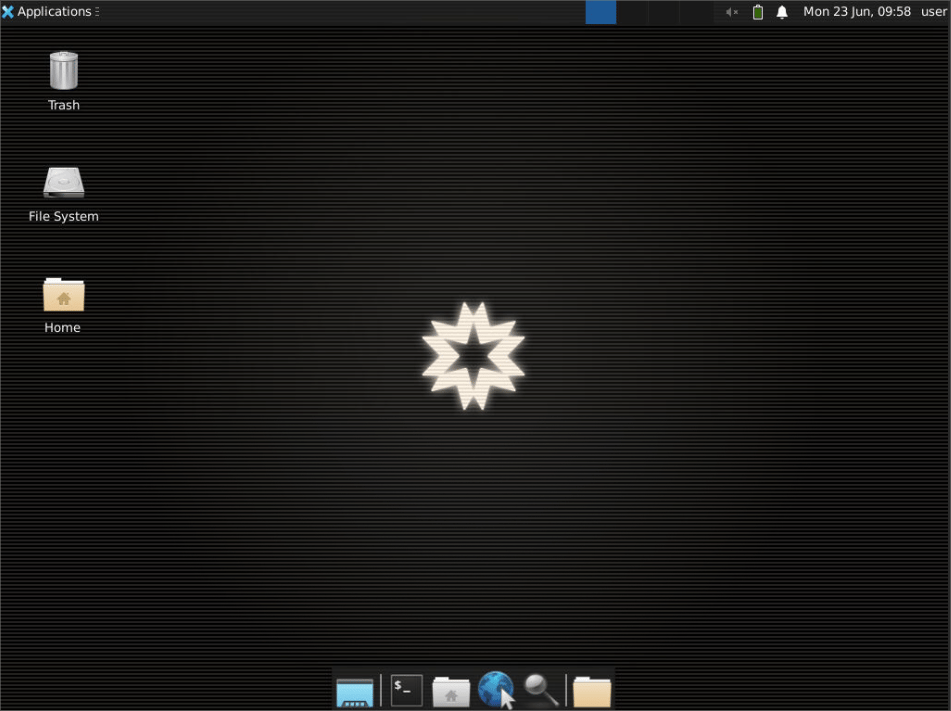
 访问虚拟桌面流 VNC 地址:
 您可以在这里找到更多示例代码。